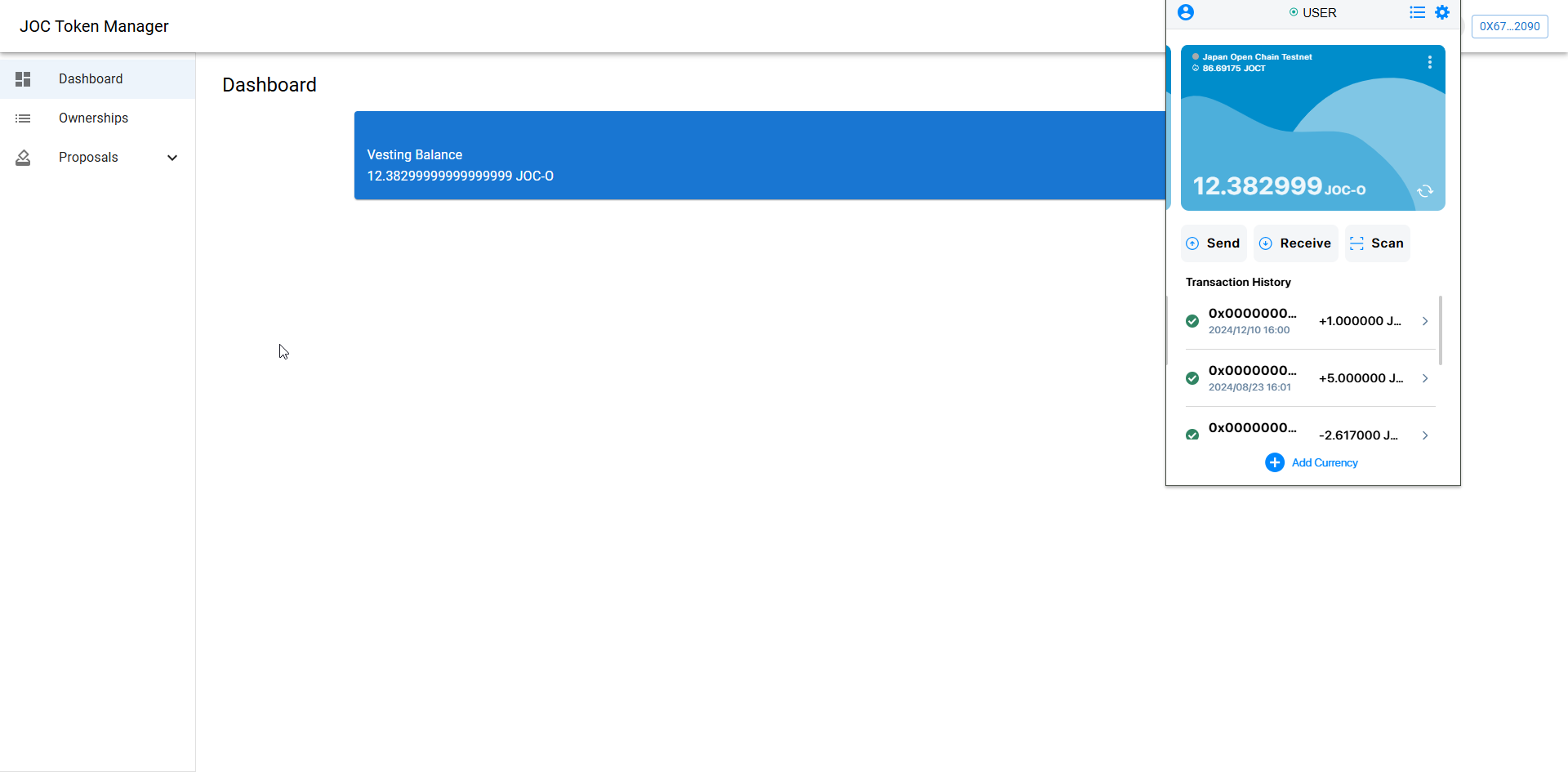
Interact with Wallet
Connect to Wallet
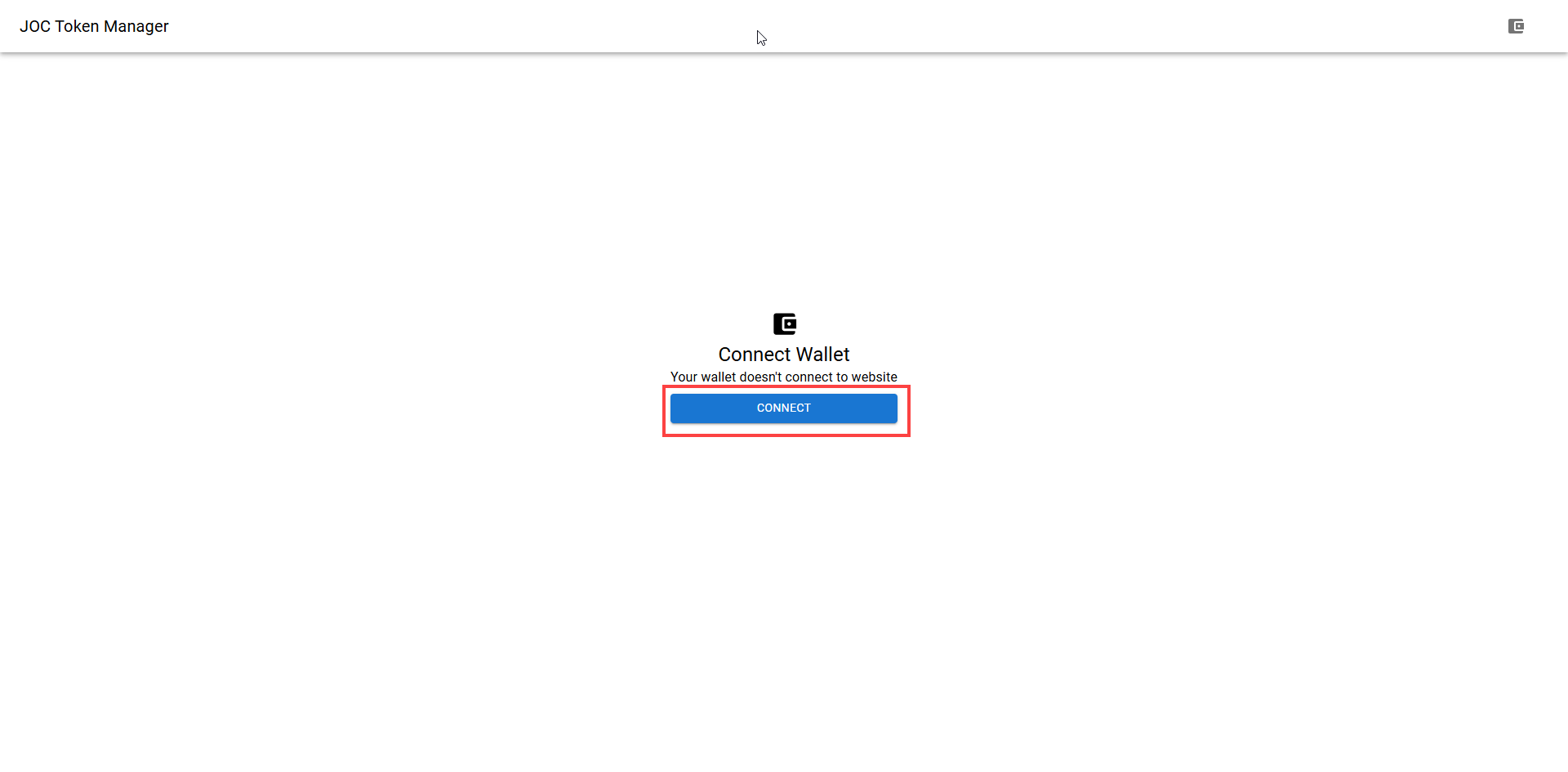
Access the JOC Token Manager link. Here, you will connect your wallet to access the website.
- Click the CONNECT button.
-
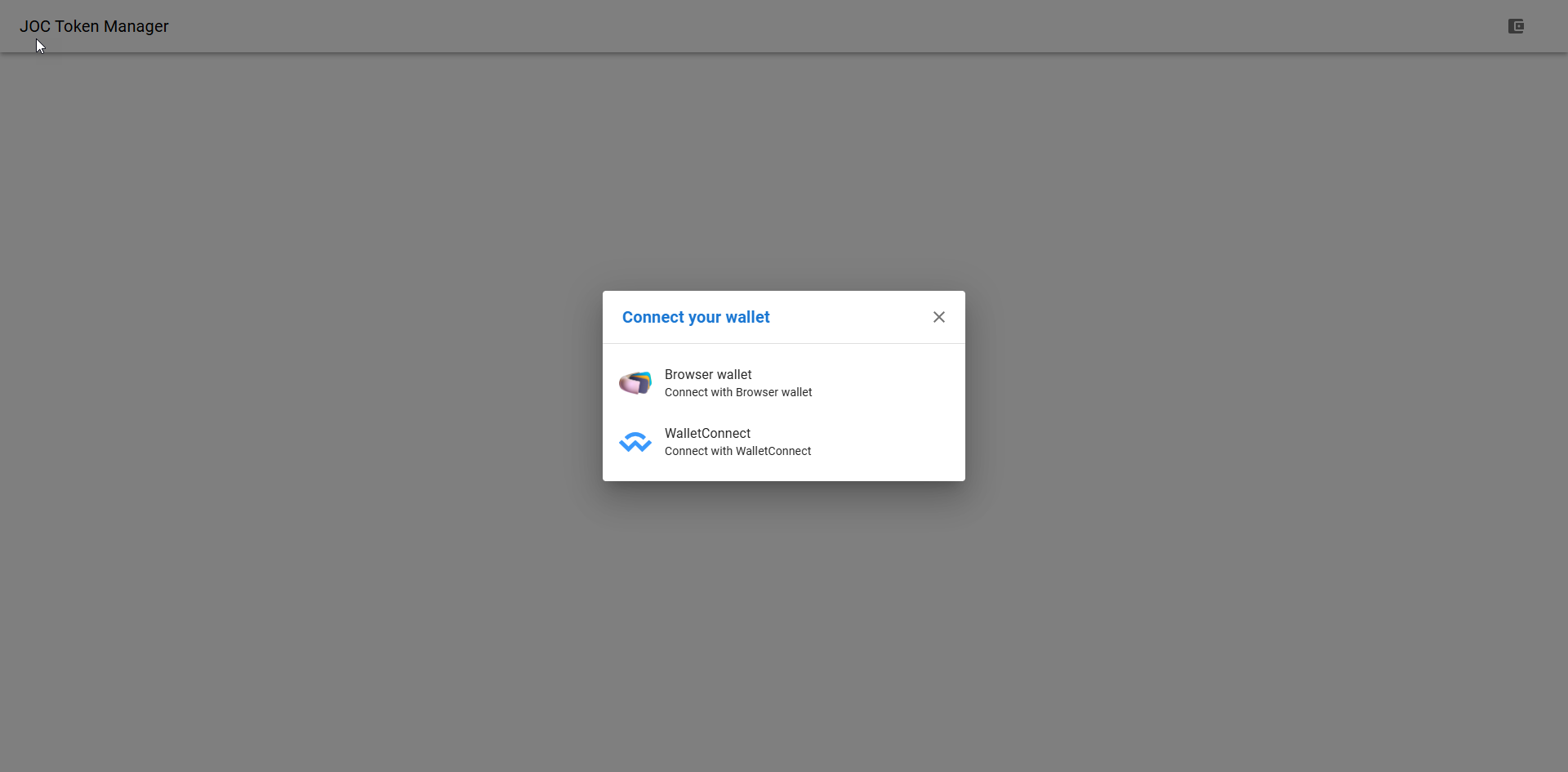
A Connect your wallet will be shown.
-
There are 2 wallet options:
- Browser Wallet: Connect to the wallet management extension on your current browser (G.U Wallet, Metamask, …).
- WalletConnect: Connect via WalletConnect platform.
-
In this guide, we will use Browser wallet option by clicking on Browser wallet
-
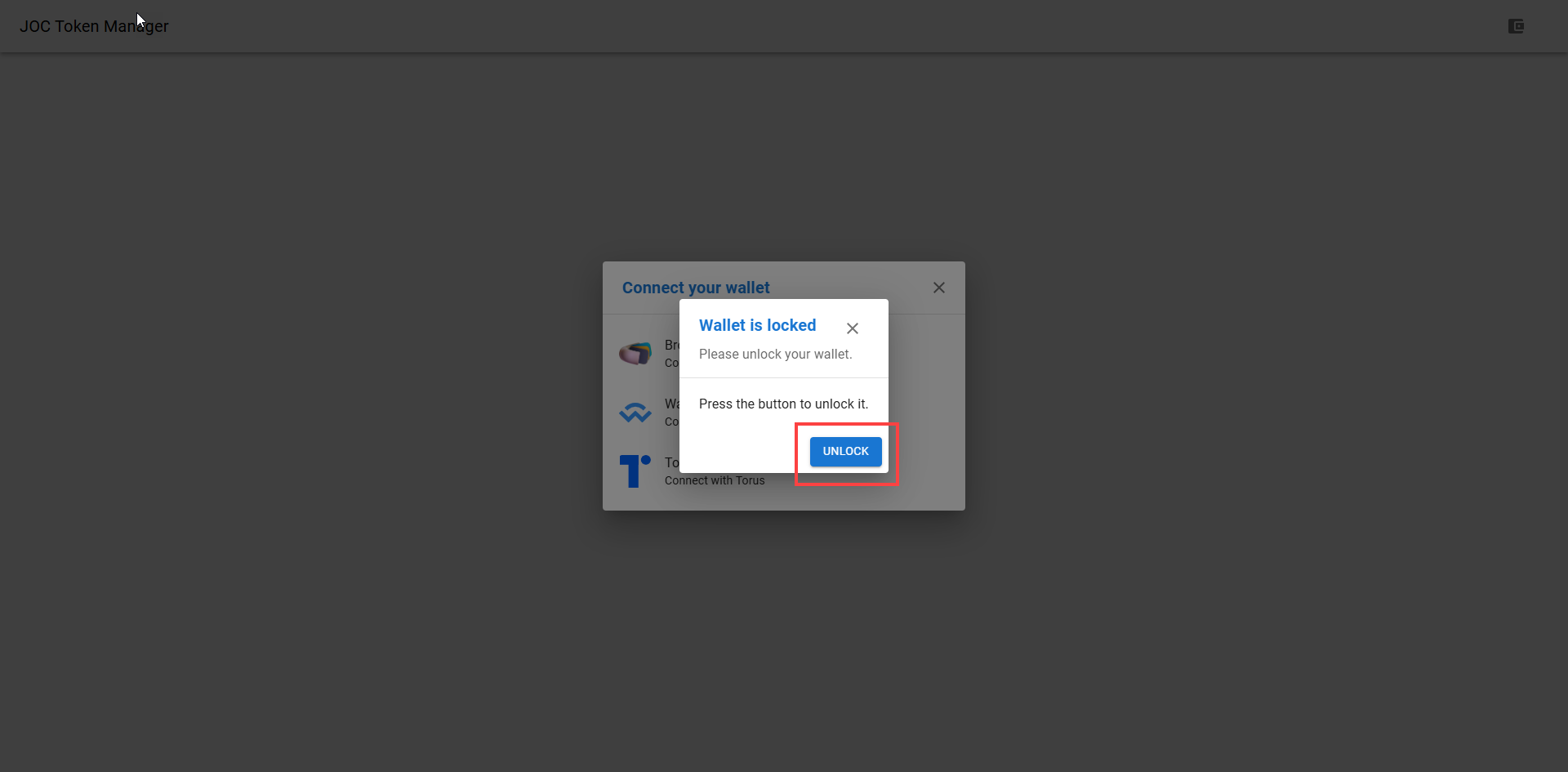
If you have not previously approved the current domain to use the wallet address currently selected in the extension, a dialog will appear notifying you that it needs to be unlocked.
-
Click the UNLOCK button.
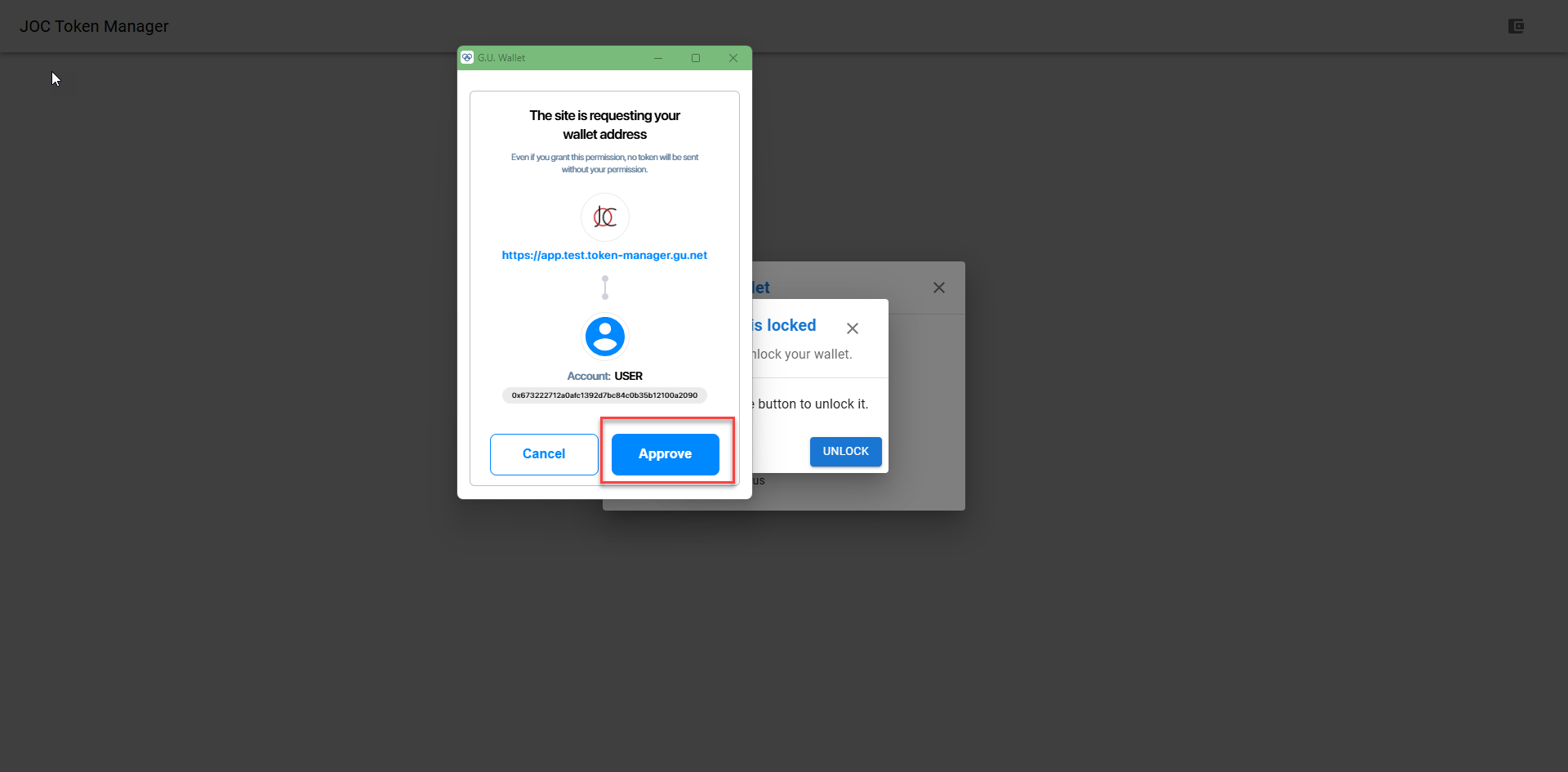
- Display dialog asking for approval to connect current wallet to domain.
- Click the Approve button.
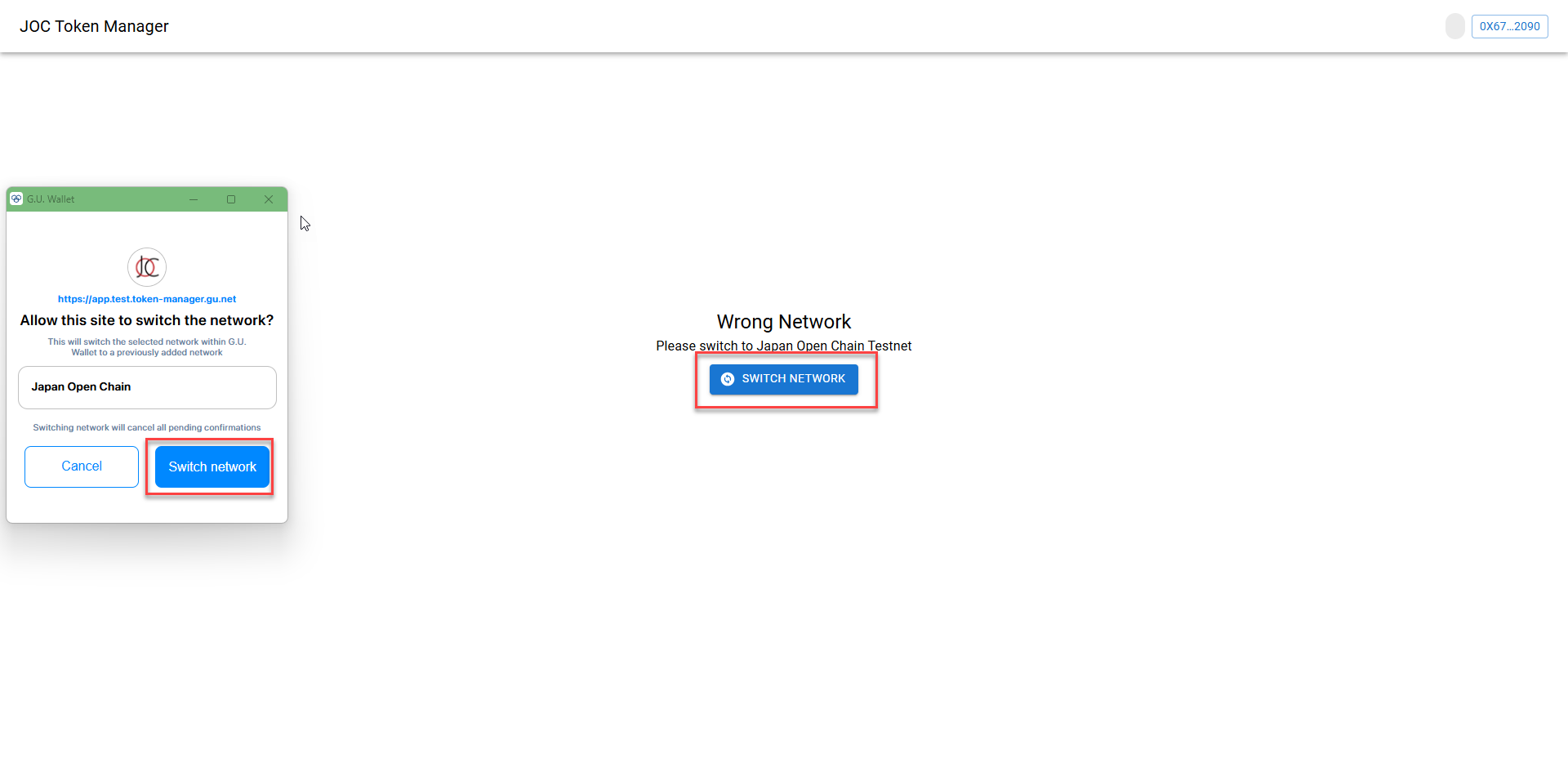
- If the Japan Open Chain network is not selected, you will need to switch to it.
- Click the Switch network button
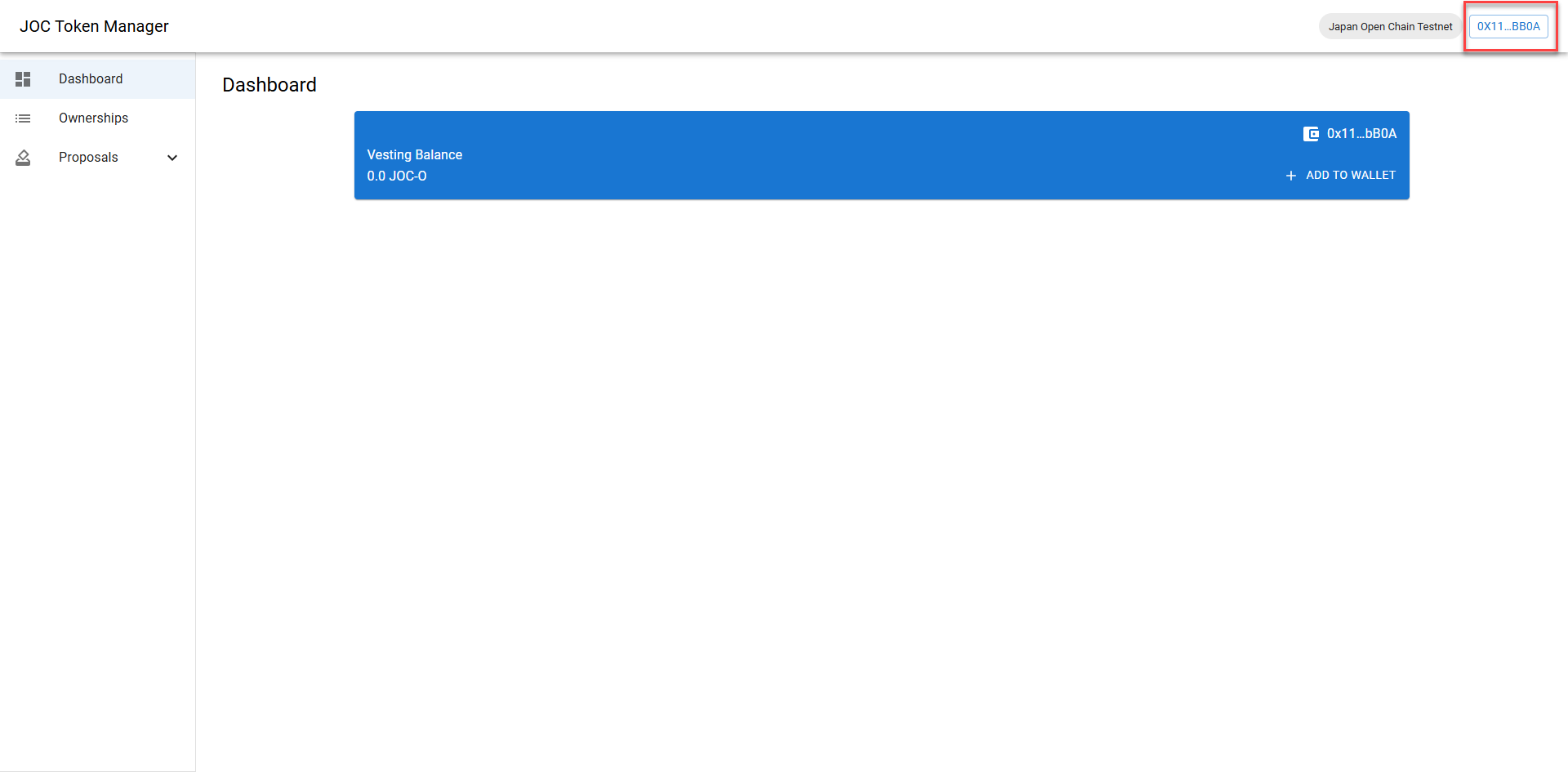
- After successful connection, the selected wallet address will be displayed.
Add Token to Wallet
- On the JOC Token Manager - Dashboard screen, Vesting Balance will be displayed.
- And we can add tokens to Wallet. Click button ADD TO WALLET
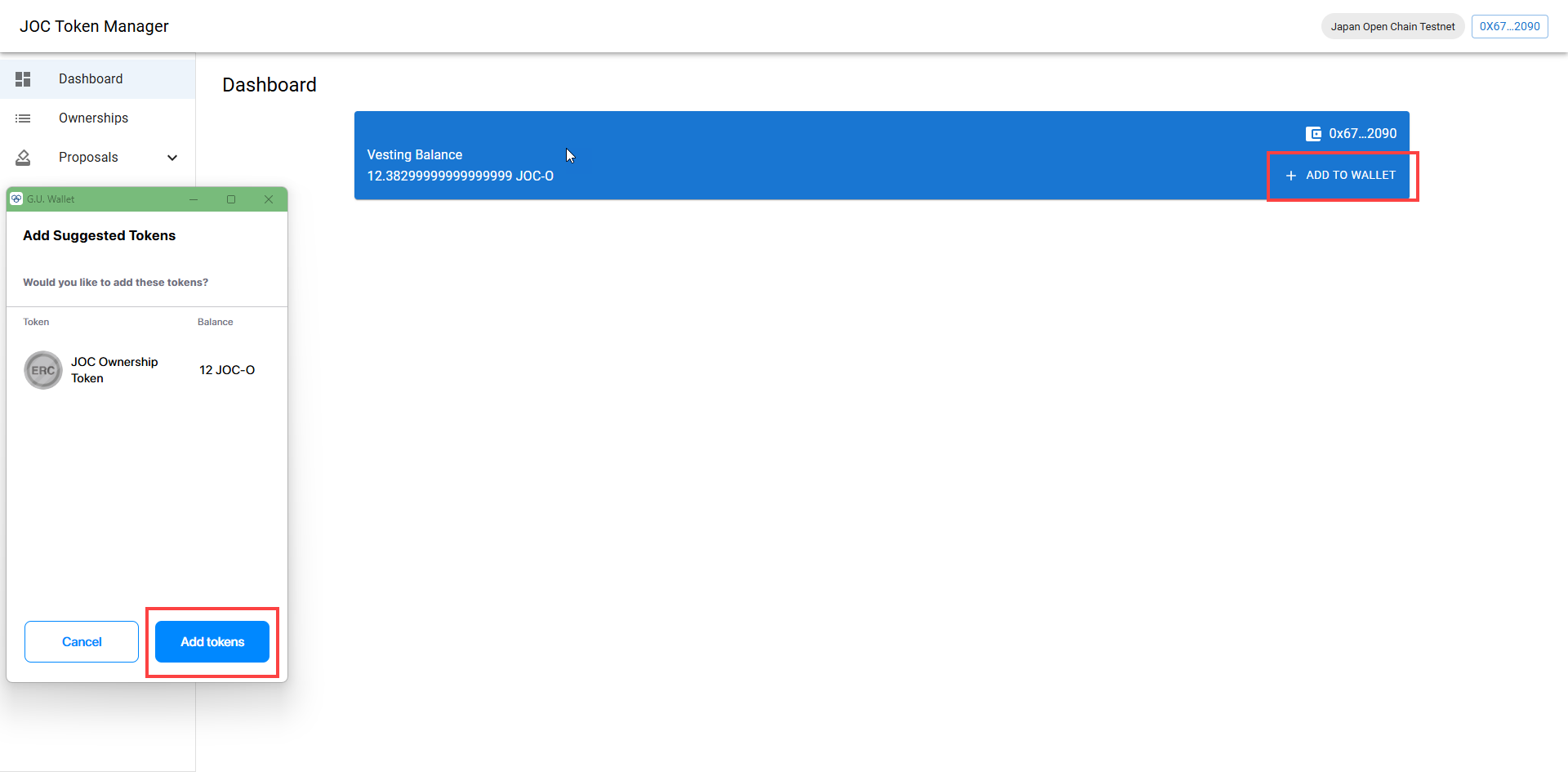
- The JOC-O token has been successfully added to your wallet.